> For the complete documentation index, see [llms.txt](https://docs.radiusaas.com/llms.txt). Markdown versions of documentation pages are available by appending `.md` to page URLs; this page is available as [Markdown](https://docs.radiusaas.com/admin-portal/scepman-saas/settings.md).
# Settings
The entries below provide a brief overview of the settings available for SCEPman SaaS. They are intentionally kept concise. For full details, refer to the corresponding sections of the [SCEPman documentation](https://docs.scepman.com/)
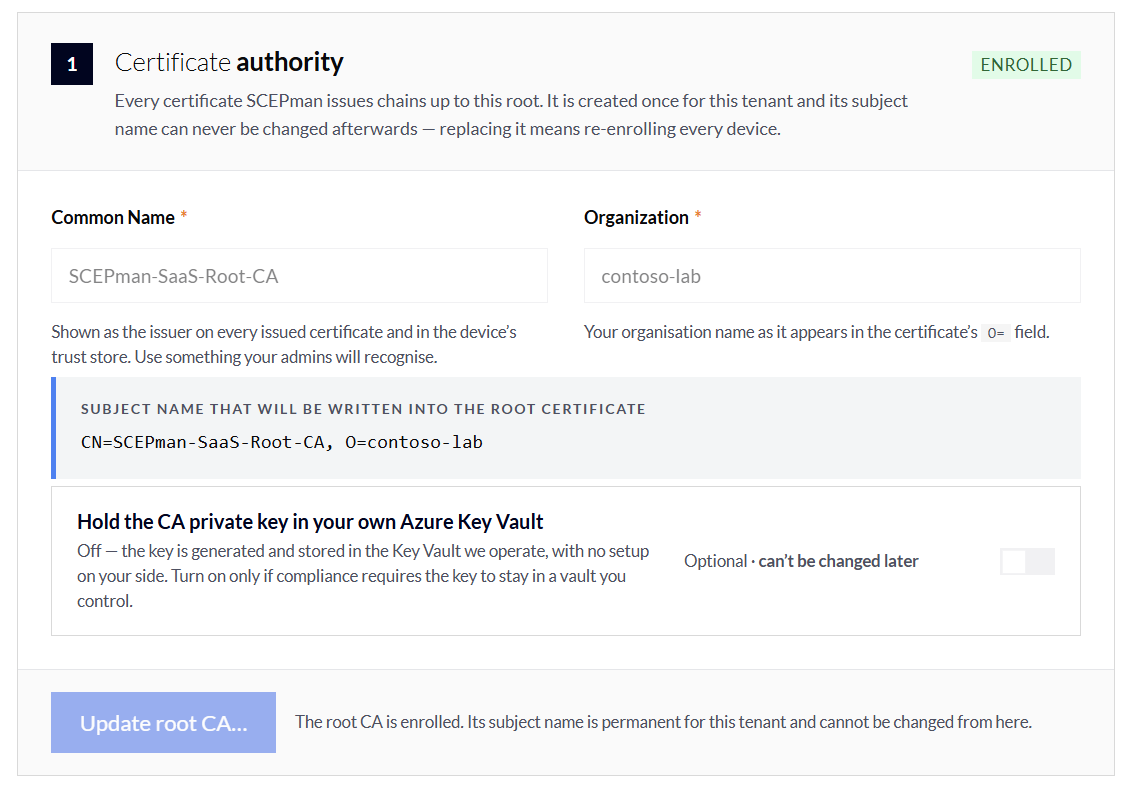
### Certificate Authority
The root certificate for your tenant. Every certificate SCEPman issues chains up to it. It is created once and its subject name cannot be changed afterwards.
The root CA itself is valid for 7300 days (20 years).
### Default Certificate Profile
The default settings applied to certificates issued through all certificate endpoints. Each source under Certificate endpoints can override these two values with its own profile.
Revocation for every certificate this CA issues is configured here as well.
Default Certificate Profile Settings
**Default Extended Key Usage**
What the certificate may be used for. Server certificates need `ServerAuthentication`; device certificates for 802.1X need `ClientAuthentication`. This is only the fallback in case the request does not contain an EKU.
**Validity Period**
The maximum number of days that an issued certificate is valid. [Learn more](https://docs.scepman.com/scepman-configuration/application-settings/certificates#appconfig-validityperioddays).
**Certificate Revocation List (CRL)**
Publishes a signed list of revoked certificates for clients that don't support OCSP. The distribution point is embedded in every certificate issued from the moment you enable it. [Learn more](https://docs.scepman.com/certificate-management/manage-certificates/enabling-crl).
**OCSP Authorised Responder**
Answers revocation live over OCSP, signed by a dedicated responder certificate. Always enabled for SCEPman SaaS. [Learn more](https://docs.scepman.com/certificate-management/manage-certificates).
### Certificate endpoints
Every endpoint is a route a device can request a certificate through. Each one brings its own certificate profile and its own credentials. Switch one on to configure it.
{% hint style="warning" %}
Enable only the endpoints you actually use. Each enabled endpoint is an additional way to obtain a certificate from your CA.
{% endhint %}
#### Microsoft Intune
{% hint style="info" %}
This endpoint requires the Entra tenant connection to be configured
{% endhint %}
Checks the device against Intune before issuing. Use this for Intune-managed Windows, iOS, Android and macOS devices. Requires the Entra tenant connection. [Learn more](https://docs.scepman.com/scepman-configuration/application-settings/scep-endpoints/intune-validation).
Microsoft Intune Settings
**Validity Period**
Overrides the default profile for every certificate issued to an Intune-managed device.
**Require the device to be compliant**
* Off: any enrolled device gets a certificate.
* On: the device must report as compliant in Intune.
[Learn more](https://docs.scepman.com/scepman-configuration/application-settings/scep-endpoints/intune-validation#appconfig-intunevalidation-compliancecheck).
**Compliance Grace Period**
Shown when the compliance check is on. A window in minutes during which a device counts as compliant even if it has not reported yet. [Learn more](https://docs.scepman.com/scepman-configuration/application-settings/scep-endpoints/intune-validation#appconfig-intunevalidation-compliancegraceperiodminutes).
**Where to look the device up**
Which directories SCEPman queries to validate the device. [Learn more](https://docs.scepman.com/scepman-configuration/device-directories).
Lookup sources, selectable in combination:
| Source | Behaviour |
| --------------------------- | ---------------------------------------------------------------------------------------------------------------------------------------------------------------------- |
| **Entra ID device objects** | Matches the request against the device object in Entra ID. Covers Entra-joined devices even when Intune hasn't checked in yet. |
| **Intune managed devices** | Matches against the Intune device record. The usual choice for MDM-enrolled devices. |
| **Endpoint list** | Matches against Intune's list of issued certificates. |
| **Opportunistic match** | Issues the certificate if none of the directories above can be reached or return a result. Keeps enrolment working during an outage — at the cost of the check itself. |
#### Jamf Pro
Checks Apple devices against your Jamf Pro inventory before issuing. Needs Jamf API credentials.
Make sure to check out the SCEPman Enterprise guide on how to setup SCEPman SaaS with Jamf Pro:
{% embed url="" %}
Jamf Pro Settings
**Default Extended Key Usage**
EKU fallback for certificates issued to Jamf devices.
**Validity period**
Overrides the default profile for this endpoint.
**Jamf API Credentials**
Client ID and secret of the Jamf Pro API role. [Learn more](https://docs.scepman.com/certificate-management/jamf/general).
#### Active Directory
Kerberos-authenticated enrolment for domain-joined Windows clients, driven entirely by Group Policy. Requires a service principal and keytab in your on-premises domain. [Learn more](https://docs.scepman.com/certificate-management/active-directory).
Four certificate templates can be enabled independently, each with its own tab:
| Template | Purpose |
| --------------------- | -------------------------------------------------------------------------------------------------------------------------------------------------------------------------------------- |
| **User** | User certificates for domain users. [Learn more](https://docs.scepman.com/scepman-configuration/application-settings/active-directory/user-template). |
| **Computer** | Machine certificates for domain-joined devices, e.g. for 802.1X. [Learn more](https://docs.scepman.com/scepman-configuration/application-settings/active-directory/computer-template). |
| **Domain controller** | LDAPS and Kerberos PKINIT certificates for DCs. [Learn more](https://docs.scepman.com/scepman-configuration/application-settings/active-directory/dc-template). |
| **RDP** | Certificates for RDP server authentication. [Learn more](https://docs.scepman.com/scepman-configuration/application-settings/active-directory/rdp-template). |
Per template:
Template Settings
**Default Extended Key Usage**
EKU fallback for this template.
**Validity Period**
Certificate lifetime for this template, in days.
**Group Filter (SIDs)**
Limits enrolment to members of the given Active Directory groups, specified by SID. Empty means every domain member may enrol.
**KSPs**
Key storage providers the private key may be created in, e.g. *Microsoft Platform Crypto Provider* (TPM) or *Microsoft Smart Card Key Storage Provider*. Empty means the client chooses.
{% hint style="info" %}
Deploying the matching group policy is described in [Group Policy](https://docs.scepman.com/certificate-management/active-directory/group-policy).
{% endhint %}
#### Domain controller certificates
Issues the certificates domain controllers need for LDAPS and Kerberos PKINIT, authenticated with a challenge password instead of Active Directory. Enable only if SCEPman serves your DCs. [Learn more](https://docs.scepman.com/certificate-management/domain-controller-certificates).
Domain Controller Settings
**Validity Period**
Certificate lifetime in days.
**Challenge Password**
Used on the domain controller when it requests its certificate.
#### Enrollment REST API
Lets your own tooling request certificates over HTTPS instead of SCEP, using Microsoft identities rather than a challenge password. Leave off unless a script or service of yours uses it. [Learn more](https://docs.scepman.com/certificate-management/api-certificates).
Requests authenticate with an API token. Manage tokens under **Access & rules → Permissions**.
Example:
{% code overflow="wrap" %}
```powershell
New-SCEPmanCertificate -Url 'contoso.scepman-as-a-service.com' -AccessToken 'IyBJJ2FtIGFuIGFjY2VzcyB0b2tlbi4gIw==' -Subject 'CN=Certificate'
```
{% endcode %}
Enrolment REST API Settings
**Default Extended Key Usage**
EKU fallback for API-issued certificates.
**Validity Period**
Certificate lifetime in days.
#### Static Challenge
Accepts any request presenting a shared challenge password. Convenient for appliances no MDM can enrol. [Learn more](https://docs.scepman.com/scepman-configuration/application-settings/scep-endpoints/static-validation).
Static Challenge Settings
**Default Extended Key Usage**
EKU fallback for this endpoint.
**Validity Period**
Certificate lifetime in days.
**Challenge Password**
Anyone holding this value can obtain a certificate. Rotate it when someone with access leaves.
**Renewals without Challenge**
* Off: every renewal must present the challenge password again.
* On: a client holding a valid certificate can renew without it.
#### Static challenge + Entra device check (Static-AAD)
{% hint style="info" %}
This endpoint requires the Entra tenant connection to be configured
{% endhint %}
As above, but the device must also exist in Entra ID. Prefer this over a plain static challenge whenever the device is Entra-joined. Requires the Entra tenant connection. [Learn more](https://docs.scepman.com/scepman-configuration/application-settings/scep-endpoints/staticaad-validation).
Same settings as **Static Challenge**.
### Entra tenant connection
{% hint style="info" %}
Optional but required for **Intune Validation** and **Static AAD Validation** endpoints.
{% endhint %}
Controls how SCEPman reads device and user objects from your Entra ID tenant. This is what makes the Intune and Entra validation sources available. While it is disabled, those sources cannot be switched on.
{% tabs %}
{% tab title="Admin consent (recommended)" %}
Grants our multi-tenant app read access in one consent flow. Fastest path, and we keep the permission set current as SCEPman evolves.
Needs a Global Administrator to approve once.
Three steps complete the connection:
{% stepper %}
{% step %}
### **Confirm the tenant**
Sign in to Entra ID. We take the tenant from that sign-in and show you which directory it is, so you don't consent in the wrong one.
You do not need to consent on behalf of your organization.
This consent will add the **SCEPman as a Service (xxxxxxxx-xxxx-xxxx-xxxx-xxxxxxxxxxxx)** Enterprise Application to your Entra environment.
{% endstep %}
{% step %}
### **Grant admin consent**
Opens the Microsoft consent screen. A Global Administrator must approve; if that isn't you, send them the consent link from this page.
This will grant the **SCEPman as a Service** Enterprise Application the required permissions.
{% endstep %}
{% step %}
### **Test the connection**
Reads one device object to prove the permissions work before you rely on them.
{% endstep %}
{% endstepper %}
{% endtab %}
{% tab title="Your own app registration" %}
Use an app registration you create and control. Choose this when policy forbids third-party multi-tenant apps.
Needs tenant ID, client ID and a client secret.
Grant the following **application** permissions and admin-consent them:
| API | Permission | Purpose |
| -------------------- | ----------------------------------------- | -------------------------------- |
| Microsoft Graph | `Directory.Read.All` | Read directory data |
| Microsoft Graph | `DeviceManagementManagedDevices.Read.All` | Read Intune devices |
| Microsoft Graph | `DeviceManagementConfiguration.Read.All` | Read Intune device configuration |
| Microsoft Intune API | `scep_challenge_provider` | SCEP challenge validation |
| {% endtab %} | | |
| {% endtabs %} | | |
### Remote debug
Enables detailed request tracing for our support team. It is disabled by default. Because traces may contain device identifiers, tracing automatically switches off on the specified date.
---
# Agent Instructions
This documentation is published with GitBook. GitBook is the documentation platform designed so that both humans and AI agents can read, navigate, and reason over technical content effectively. Learn more at gitbook.com.
## Querying This Documentation
If you need additional information that is not directly available in this page, you can query the documentation by asking a question.
Perform an HTTP GET request on the following URL with the `ask` and `goal` query parameters:
```
GET https://docs.radiusaas.com/admin-portal/scepman-saas/settings.md?ask=&goal=
```
`ask` is the immediate question: it should be specific, self-contained, and written in natural language.
`goal` is what the user is ultimately trying to achieve, the reason they need the answer. Sharing it helps GitBook give you a better, more relevant answer. A goal is most helpful when it describes the outcome the user wants rather than restating the question. For example, with `ask=how do I create an API token`, a goal like `automate deployments from our CI pipeline` lets GitBook tailor the answer to that use case.
The response will contain a direct answer to the question and relevant excerpts and sources from the documentation.
Use this mechanism when the answer is not explicitly present in the current page, you need clarification or additional context, or you want to retrieve related documentation sections.