> For the complete documentation index, see [llms.txt](https://docs.radiusaas.com/llms.txt). Markdown versions of documentation pages are available by appending `.md` to page URLs; this page is available as [Markdown](https://docs.radiusaas.com/ja/ptaru/settings/log-exporter/teams.md).
# Teams
## 前提条件
RADIUSaaSのログを **Microsoft Teams チャンネル**に取り込むには、Microsoft Teams 自体と、 **コネクタを追加する権限だけが** 関連する **チャネル** 必要です。
## 構成手順
次の手順に従って、RADIUSaaSのログを **Microsoft Teams チャンネル**:
1. 次に移動します **Microsoft Teams**
2. に送信します。 **チャネル** > **その他のオプション** > **チームを管理**
3. へ移動し、 **アプリ**
4. をクリックします **+ その他のアプリを取得**
5. "を検索**Incoming Webhook**"
6. をクリックします **追加** その後 **チームに追加**
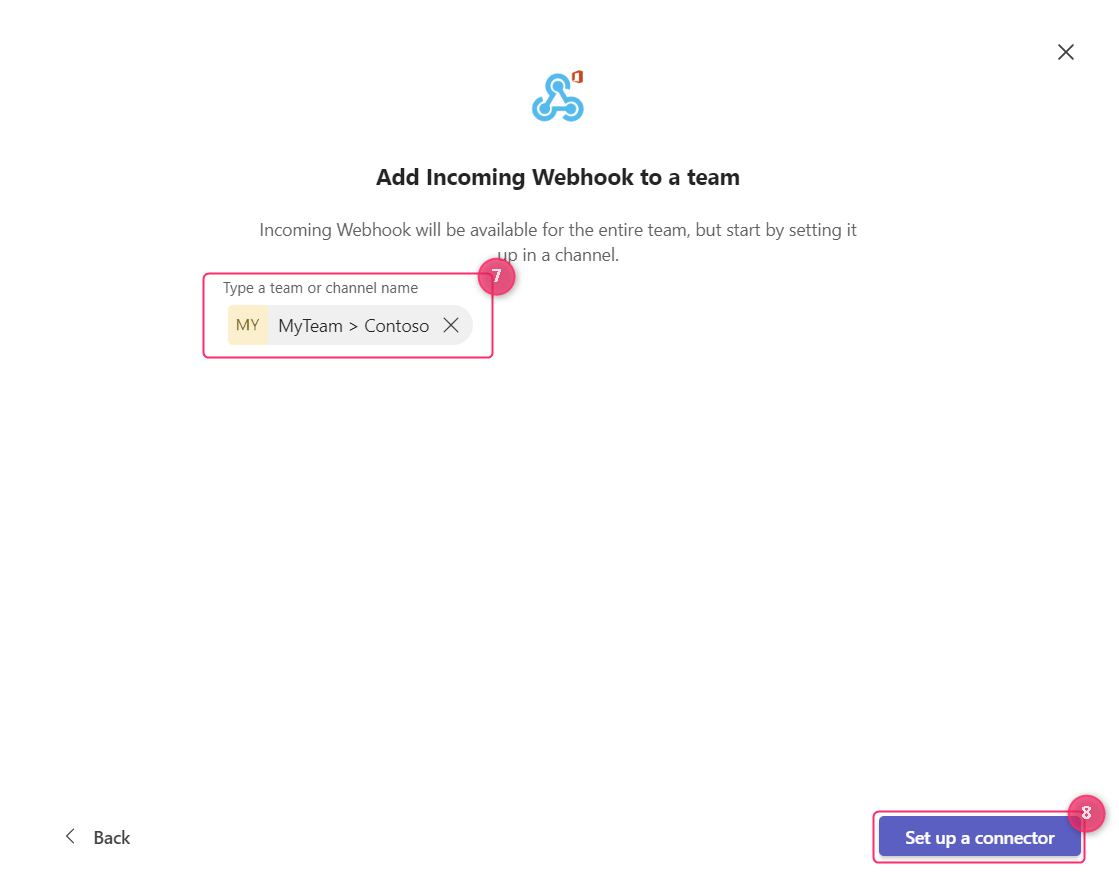
7. チームを選択
8. をクリックします **コネクタを設定**
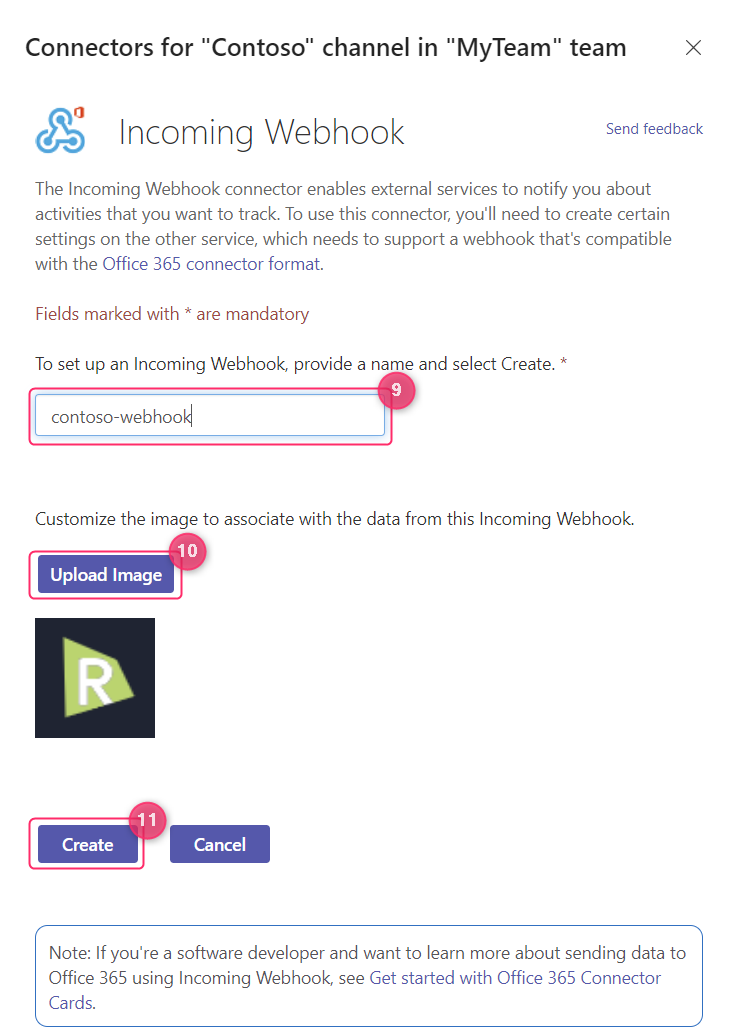
9. 以下を指定してください **名前** 用の
10. ロゴをアップロード
11. をクリックします **作成** して **Webhook Connector URL**
{% hint style="warning" %}
Urlを必ずコピーしてください。
{% endhint %}
次に、Log Exporterでエクスポート先を設定します。
* 次の場所に移動します **RADIUSaaS Admin Portal > Log Exporter**
* をクリックします **+ 追加** > **Teams**
* 以下を指定してください **名前** および **説明**
* を構成します **Message Filters** をニーズに合わせて
* 次の項目に **Webhook Connector URL** を貼り付けてください **Teams channel Webhook URL**
* を構成します **メッセージ** Microsoft Teams チャネルに送信される
---
# Agent Instructions
This documentation is published with GitBook. GitBook is the documentation platform designed so that both humans and AI agents can read, navigate, and reason over technical content effectively. Learn more at gitbook.com.
## Querying This Documentation
If you need additional information that is not directly available in this page, you can query the documentation by asking a question.
Perform an HTTP GET request on the following URL with the `ask` and `goal` query parameters:
```
GET https://docs.radiusaas.com/ja/ptaru/settings/log-exporter/teams.md?ask=&goal=
```
`ask` is the immediate question: it should be specific, self-contained, and written in natural language.
`goal` is what the user is ultimately trying to achieve, the reason they need the answer. Sharing it helps GitBook give you a better, more relevant answer. A goal is most helpful when it describes the outcome the user wants rather than restating the question. For example, with `ask=how do I create an API token`, a goal like `automate deployments from our CI pipeline` lets GitBook tailor the answer to that use case.
The response will contain a direct answer to the question and relevant excerpts and sources from the documentation.
Use this mechanism when the answer is not explicitly present in the current page, you need clarification or additional context, or you want to retrieve related documentation sections.