> For the complete documentation index, see [llms.txt](https://docs.radiusaas.com/llms.txt). Markdown versions of documentation pages are available by appending `.md` to page URLs; this page is available as [Markdown](https://docs.radiusaas.com/ja/purofairuno/jamf-pro/wifi-profile.md).
# WiFi プロファイル
{% hint style="warning" %}
強く推奨します **スペースを使用しないこと** または **特殊文字** あなたの **SSID**.
{% endhint %}
JamfでWiFiプロファイルを構成するには、次の手順に従ってください:
1. Jamf Pro インスタンスにログインします
2. 正しい展開スコープ(コンピューター、デバイス、またはユーザー)を選択します。この例では、macOS デバイス(コンピューター)を選択しています。
3. 前の手順で作成した既存の構成プロファイルに移動します([信頼されたルート](/ja/purofairuno/jamf-pro/server-trust.md))
4. 次を追加します **ネットワーク** ペイロード
5. として **ネットワーク インターフェース** 選択します **Wi-Fi**
6. 次を入力します **Service Set Identifier (SSID)**
7. として **セキュリティの種類** 選択します **任意(エンタープライズ)**
8. 「 **ネットワーク セキュリティ設定** および **プロトコル** 選択します **TLS**
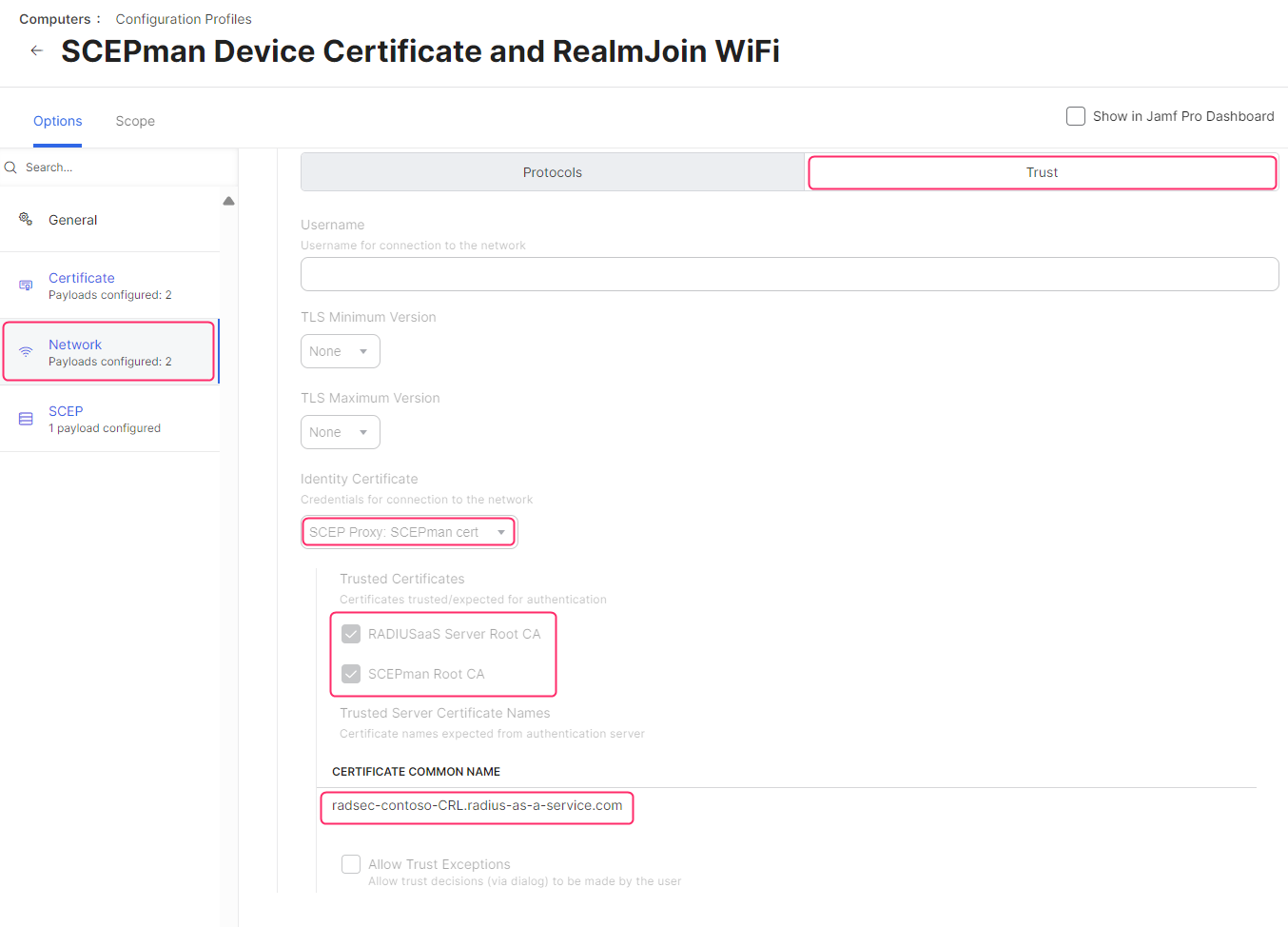
9. 次に移動します **ネットワーク セキュリティ設定** **>** **信頼**
10. として **識別証明書** この構成プロファイルの SCEP ペイロードで以前に構成したクライアント認証証明書を選択します。CA として SCEPman を使用している場合は、以前に設定した SCEP Proxy を選択してください。 [の構成](https://docs.scepman.com/certificate-deployment/jamf/general) SCEPman の。
11. 「 **Trusted Certificates** ペイロードとして構成したすべての証明書が **Certificate** ここに表示されます。すべて選択してください。
12. 次に、 **信頼するサーバー証明書名** を追加します
* **サブジェクト代替名 (SAN)**
* および **共通名 (CN)** \
\
の *アクティブな* RADIUS [**サーバー証明書。**](/ja/ptaru/settings/settings-server.md#server-certificates) これらのプロパティは、アクティブなサーバー証明書を展開し、該当する値をコピーすることで確認できます。
{% hint style="warning" %}
共通名は大文字と小文字を区別することに注意してください。
JAMF インターフェースの「信頼するサーバー証明書名」入力フィールドの先頭または末尾に、スペースや不可視文字がないことを必ず確認してください。
{% endhint %}
13. 選択解除 **信頼の例外を許可**
14. その他のすべてのオプションは、要件に応じて構成してください。
15. をクリックします **保存**
16. 「 **スコープ** 関連する対象ユーザーにプロファイルを割り当てます
---
# Agent Instructions
This documentation is published with GitBook. GitBook is the documentation platform designed so that both humans and AI agents can read, navigate, and reason over technical content effectively. Learn more at gitbook.com.
## Querying This Documentation
If you need additional information that is not directly available in this page, you can query the documentation by asking a question.
Perform an HTTP GET request on the following URL with the `ask` and `goal` query parameters:
```
GET https://docs.radiusaas.com/ja/purofairuno/jamf-pro/wifi-profile.md?ask=&goal=
```
`ask` is the immediate question: it should be specific, self-contained, and written in natural language.
`goal` is what the user is ultimately trying to achieve, the reason they need the answer. Sharing it helps GitBook give you a better, more relevant answer. A goal is most helpful when it describes the outcome the user wants rather than restating the question. For example, with `ask=how do I create an API token`, a goal like `automate deployments from our CI pipeline` lets GitBook tailor the answer to that use case.
The response will contain a direct answer to the question and relevant excerpts and sources from the documentation.
Use this mechanism when the answer is not explicitly present in the current page, you need clarification or additional context, or you want to retrieve related documentation sections.