> For the complete documentation index, see [llms.txt](https://docs.radiusaas.com/llms.txt). Markdown versions of documentation pages are available by appending `.md` to page URLs; this page is available as [Markdown](https://docs.radiusaas.com/ja/she-ding/scepman-saas.md).
# 🆕 SCEPman SaaS
space.vars.SCEPmanSAAS\_ProductName は、完全に管理され、ホストされ、保守される SCEPman のデプロイです。これは RADIUSaaS & に含まれています space.vars.SCEPmanSAAS\_ProductName Bundle で、1 つのサブスクリプションで両方のサービスを提供します。SCEPman インスタンスを管理せずに、RADIUSaaS での証明書ベース認証用の証明書を発行するために使用します。このガイドでは、次の初期設定を扱います **Intune** のデプロイです。
## セットアップ space.vars.SCEPmanSAAS\_ProductName
{% hint style="info" %}
すでに RADIUSaaS で、テナント内の既存の SCEPman Enterprise デプロイを使用している場合は、移行ガイドをご確認ください: [SCEPman Enterprise からの移行](/ja/she-ding/scepman-saas/scepman-enterprise-karano.md)
{% endhint %}
{% stepper %}
{% step %}
### 登録する space.vars.SCEPmanSAAS\_ProductName CA
有効な space.vars.SCEPmanSAAS\_ProductName ライセンスがあると、 **SCEPman** > **設定** には、SCEPman CA を登録および設定するためのオプションがあります。
上部で、 **共通名** および **組織** 名を CA に対して指定できます。
 {% hint style="info" %}
登録時に、Common Name と Organization が CA 証明書のサブジェクトを構成します。
{% endhint %}
をクリックすると **ルート CA を登録**するとセットアップが開始され、状態が上に表示されます。完了すると、SCEPman セクションに追加のページが表示されます。
{% tabs %}
{% tab title="状態" %}
この **状態** ページには、CA とその統合の現在の状態に加え、証明書を要求するために必要なエンドポイント URL が表示されます。
{% hint style="info" %}
登録時に、Common Name と Organization が CA 証明書のサブジェクトを構成します。
{% endhint %}
をクリックすると **ルート CA を登録**するとセットアップが開始され、状態が上に表示されます。完了すると、SCEPman セクションに追加のページが表示されます。
{% tabs %}
{% tab title="状態" %}
この **状態** ページには、CA とその統合の現在の状態に加え、証明書を要求するために必要なエンドポイント URL が表示されます。
 {% endtab %}
{% tab title="証明書の管理" %}
では **証明書の管理** 発行済み証明書を参照し、有効性を確認し、失効させることもできます。
{% endtab %}
{% tab title="証明書の管理" %}
では **証明書の管理** 発行済み証明書を参照し、有効性を確認し、失効させることもできます。
 {% endtab %}
{% tab title="証明書の要求" %}
では **証明書の要求**では、手動の登録とインストール用にさまざまな種類の証明書を要求したり、CSR に署名したりできます。
{% hint style="info" %}
専用の [Certificate Master](https://docs.scepman.com/certificate-management/certificate-master) ドキュメントで、ここで要求できるさまざまな種類の証明書の詳細をご確認ください。
{% endhint %}
{% endtab %}
{% tab title="証明書の要求" %}
では **証明書の要求**では、手動の登録とインストール用にさまざまな種類の証明書を要求したり、CSR に署名したりできます。
{% hint style="info" %}
専用の [Certificate Master](https://docs.scepman.com/certificate-management/certificate-master) ドキュメントで、ここで要求できるさまざまな種類の証明書の詳細をご確認ください。
{% endhint %}
 {% endtab %}
{% tab title="タスク" %}
この **タスク** セクションには、Certificate Master の現在の状態と、あなたのロールで許可されたセクションへのリンクが表示されます。
{% endtab %}
{% tab title="タスク" %}
この **タスク** セクションには、Certificate Master の現在の状態と、あなたのロールで許可されたセクションへのリンクが表示されます。
 {% endtab %}
{% endtabs %}
{% hint style="success" %}
SCEPman は現在デプロイされており、証明書を発行できる状態です!
{% endhint %}
{% endstep %}
{% step %}
### 既定の証明書プロファイルを構成する
すべての証明書エンドポイントを通じて発行される証明書に適用される既定設定です。証明書エンドポイント配下の各ソースは、独自のプロファイルでこの 2 つの値を上書きできます。
この CA が発行するすべての証明書の失効設定もここで行います。
{% endtab %}
{% endtabs %}
{% hint style="success" %}
SCEPman は現在デプロイされており、証明書を発行できる状態です!
{% endhint %}
{% endstep %}
{% step %}
### 既定の証明書プロファイルを構成する
すべての証明書エンドポイントを通じて発行される証明書に適用される既定設定です。証明書エンドポイント配下の各ソースは、独自のプロファイルでこの 2 つの値を上書きできます。
この CA が発行するすべての証明書の失効設定もここで行います。
既定の証明書プロファイル設定
**既定の拡張キー使用法**
証明書を何に使用できるかを示します。サーバー証明書には `ServerAuthentication`;802.1X 用のデバイス証明書には `ClientAuthentication`。これは、要求に EKU が含まれていない場合のフォールバックにすぎません。
**有効期間**
発行された証明書が有効である最大日数です。 [詳細](https://docs.scepman.com/scepman-configuration/application-settings/certificates#appconfig-validityperioddays).
**証明書失効リスト (CRL)**
OCSP をサポートしないクライアント向けに、署名済みの失効証明書一覧を公開します。配布ポイントは、有効化した時点から発行されるすべての証明書に埋め込まれます。 [詳細](https://docs.scepman.com/certificate-management/manage-certificates/enabling-crl).
**OCSP 認証済みレスポンダー**
専用のレスポンダー証明書で署名され、OCSP を介して失効状況にリアルタイムで応答します。SCEPman SaaS では常に有効です。 [詳細](https://docs.scepman.com/certificate-management/manage-certificates).
 {% endstep %}
{% step %}
### 証明書エンドポイントを有効にする
テナントに関連する証明書エンドポイントを有効にします。エンドポイントをオンにすると、構成可能な追加設定が表示されます。各エンドポイントの詳細は [こちら](/ja/ptaru/scepman-saas/she-ding.md#certificate-endpoints).
{% hint style="warning" %}
Microsoft Intune と Static challenge + Entra device check のエンドポイントは、先に手順 4 を完了しておく必要があります。
{% endhint %}
{% endstep %}
{% step %}
### 証明書エンドポイントを有効にする
テナントに関連する証明書エンドポイントを有効にします。エンドポイントをオンにすると、構成可能な追加設定が表示されます。各エンドポイントの詳細は [こちら](/ja/ptaru/scepman-saas/she-ding.md#certificate-endpoints).
{% hint style="warning" %}
Microsoft Intune と Static challenge + Entra device check のエンドポイントは、先に手順 4 を完了しておく必要があります。
{% endhint %}
 {% endstep %}
{% step %}
### SCEPman を Azure Tenant に接続する
{% hint style="info" %}
証明書を Intune または Static-AAD エンドポイント経由で配布する予定がある場合のみ、SCEPman を Azure テナントに接続する必要があります。
{% endhint %}
ほとんどのシナリオでは、SCEPman が Intune SCEP プロファイルを使用して証明書を発行し、たとえばデバイスが消去された場合に自動で証明書を失効できるようにしたいはずです。
これを意図したとおりに機能させるには、SCEPman にテナント内の特定のロールが必要です。これは、当社のマルチテナント enterprise application への同意を行うか、必要な権限を持つアプリ登録を自分で提供することで実現できます。
#### Tenant を確認
{% hint style="info" %}
Azure テナントに接続するには、Admin Consent / multi-tenant enterprise application の方式をおすすめします。これは、有効期限を監視する必要のあるクライアント シークレットを必要としないためです。
{% endhint %}
の最初の手順は **Admin Consent** フローでは、テナント ID を入力して確認します。
{% endstep %}
{% step %}
### SCEPman を Azure Tenant に接続する
{% hint style="info" %}
証明書を Intune または Static-AAD エンドポイント経由で配布する予定がある場合のみ、SCEPman を Azure テナントに接続する必要があります。
{% endhint %}
ほとんどのシナリオでは、SCEPman が Intune SCEP プロファイルを使用して証明書を発行し、たとえばデバイスが消去された場合に自動で証明書を失効できるようにしたいはずです。
これを意図したとおりに機能させるには、SCEPman にテナント内の特定のロールが必要です。これは、当社のマルチテナント enterprise application への同意を行うか、必要な権限を持つアプリ登録を自分で提供することで実現できます。
#### Tenant を確認
{% hint style="info" %}
Azure テナントに接続するには、Admin Consent / multi-tenant enterprise application の方式をおすすめします。これは、有効期限を監視する必要のあるクライアント シークレットを必要としないためです。
{% endhint %}
の最初の手順は **Admin Consent** フローでは、テナント ID を入力して確認します。
 をクリックすると **Tenant を確認** 認証のために Microsoft の同意ページへリダイレクトされ、このアプリケーションを最初に承認します:
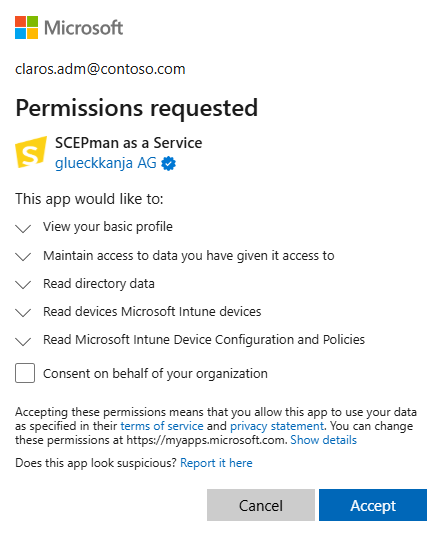 この同意を受け入れると、
 space.vars.SCEPmanSAAS\_ProductName enterprise application がテナントに追加されますが、必要な権限はまだ追加されません。
#### 管理者の同意
 テナントを確認したら、 **管理者の同意**を選択します。Microsoft の同意ページが再度開きます。アプリケーションが一覧の権限を受け取れることを確認してください。詳細は Security & Privacy Q\&As を参照してください。
 {% hint style="success" %}
SCEPman は Azure テナントに接続し、証明書バインディング用の情報を取得できるようになりました!
{% endhint %}
{% endstep %}
{% step %}
### Intune エンドポイントを有効にする
ほとんどのシナリオでは、Intune SCEP 証明書プロファイルを活用してデバイスに SCEPman からの証明書要求を促し、証明書を配布します。このエンドポイントを有効にするには、次へ移動します **SCEPman** > **設定** そして次を有効にします **Intune Validation** 設定を有効にして、構成を保存します:
{% hint style="success" %}
SCEPman は Azure テナントに接続し、証明書バインディング用の情報を取得できるようになりました!
{% endhint %}
{% endstep %}
{% step %}
### Intune エンドポイントを有効にする
ほとんどのシナリオでは、Intune SCEP 証明書プロファイルを活用してデバイスに SCEPman からの証明書要求を促し、証明書を配布します。このエンドポイントを有効にするには、次へ移動します **SCEPman** > **設定** そして次を有効にします **Intune Validation** 設定を有効にして、構成を保存します:
 #### コンプライアンス チェック
SCEPman Enterprise と同様に、SCEPman は関連付けられたデバイスのコンプライアンス状態を確認することで、証明書の有効性を評価できます。 [SCEPman documentation](https://docs.scepman.com/scepman-configuration/application-settings/scep-endpoints/intune-validation#appconfig-intunevalidation-compliancecheck) で詳細をご確認ください。
#### デバイス ディレクトリ
デバイス ディレクトリの選択は、SCEP プロファイルで選択する特定のバインディングに依存します:
* `{{DeviceId}}` で参照されます **Intune**
* `{{AAD_DeviceID}}` で参照されます **AAD** (Entra ID)
* `{{UserPrincipalName}}` (UPN) で参照されます **AAD** (Entra ID)
次を参照してください [SCEPman documentation](https://docs.scepman.com/scepman-configuration/application-settings/scep-endpoints/intune-validation#appconfig-intunevalidation-devicedirectory) デバイス ディレクトリの詳細については。
{% hint style="success" %}
Intune validation が有効になり、証明書エンドポイントが利用可能になりました!
{% endhint %}
{% endstep %}
{% step %}
### 証明書を配布
Intune validation を有効にすると、SCEPman の状態ページに Intune MDM 用のエンドポイント URL が表示されるようになります:
#### コンプライアンス チェック
SCEPman Enterprise と同様に、SCEPman は関連付けられたデバイスのコンプライアンス状態を確認することで、証明書の有効性を評価できます。 [SCEPman documentation](https://docs.scepman.com/scepman-configuration/application-settings/scep-endpoints/intune-validation#appconfig-intunevalidation-compliancecheck) で詳細をご確認ください。
#### デバイス ディレクトリ
デバイス ディレクトリの選択は、SCEP プロファイルで選択する特定のバインディングに依存します:
* `{{DeviceId}}` で参照されます **Intune**
* `{{AAD_DeviceID}}` で参照されます **AAD** (Entra ID)
* `{{UserPrincipalName}}` (UPN) で参照されます **AAD** (Entra ID)
次を参照してください [SCEPman documentation](https://docs.scepman.com/scepman-configuration/application-settings/scep-endpoints/intune-validation#appconfig-intunevalidation-devicedirectory) デバイス ディレクトリの詳細については。
{% hint style="success" %}
Intune validation が有効になり、証明書エンドポイントが利用可能になりました!
{% endhint %}
{% endstep %}
{% step %}
### 証明書を配布
Intune validation を有効にすると、SCEPman の状態ページに Intune MDM 用のエンドポイント URL が表示されるようになります:
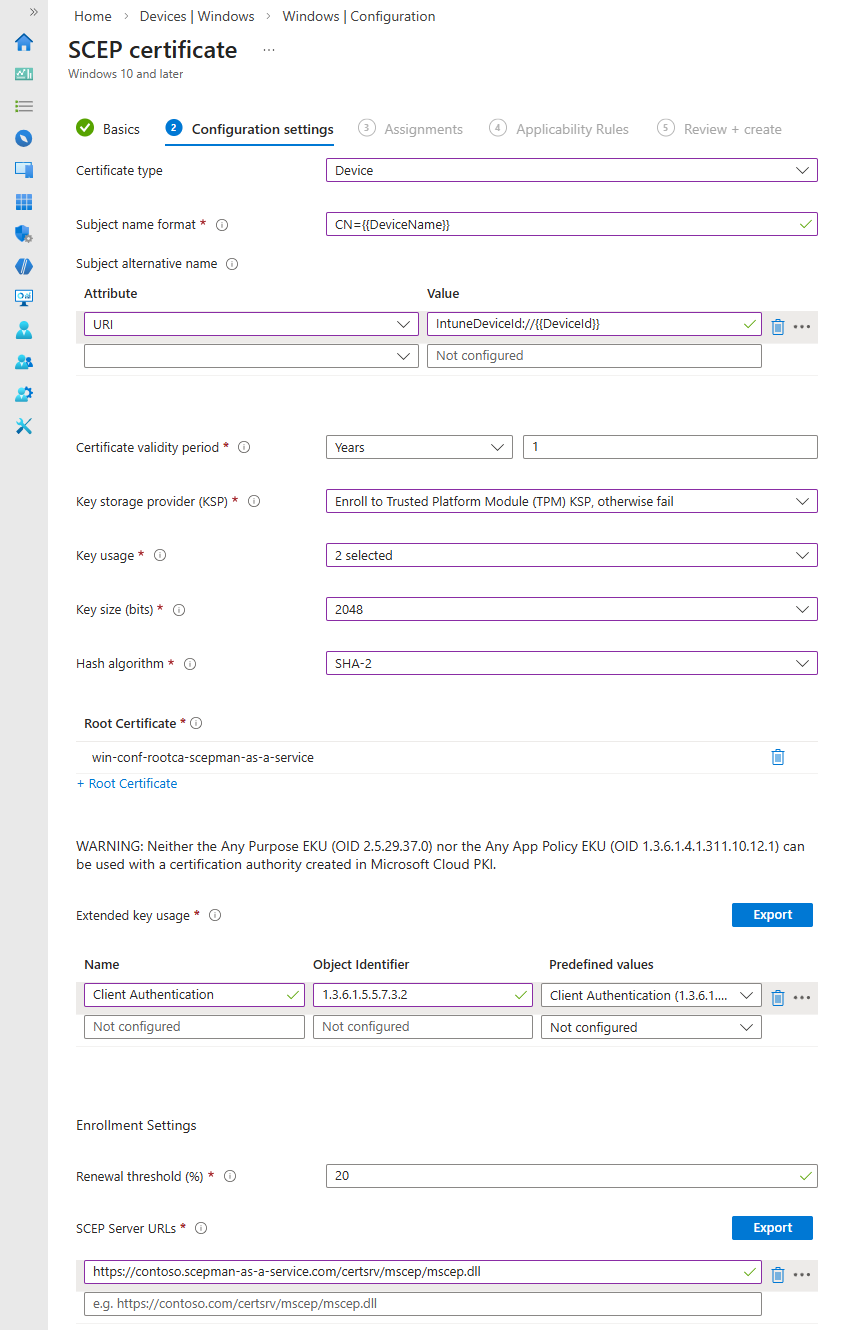
 この URL は、Intune SCEP 証明書プロファイルの **SCEP Server URL**.
#### ルート証明書
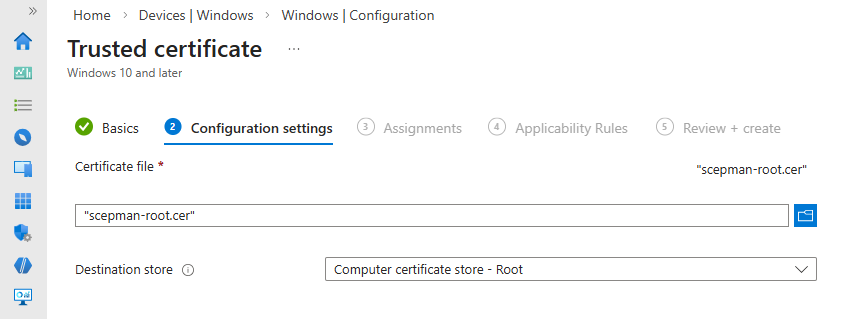
必ず **Trusted Certificate** プロファイルを Intune で作成してから次へ進んでください **SCEP 証明書** プロファイルを作成し、CA 証明書を配布します
この URL は、Intune SCEP 証明書プロファイルの **SCEP Server URL**.
#### ルート証明書
必ず **Trusted Certificate** プロファイルを Intune で作成してから次へ進んでください **SCEP 証明書** プロファイルを作成し、CA 証明書を配布します space.vars.SCEPmanSAAS\_ProductName クライアントに
[SCEPman documentation: Root Certificate](https://docs.scepman.com/certificate-management/microsoft-intune/windows-10#root-certificate)
 #### SCEP 証明書
SCEP 証明書プロファイルの作成手順は SCEPman Enterprise と同じです。
[SCEPman documentation: SCEP - Intune - Windows](https://docs.scepman.com/certificate-management/microsoft-intune/windows-10)
#### SCEP 証明書
SCEP 証明書プロファイルの作成手順は SCEPman Enterprise と同じです。
[SCEPman documentation: SCEP - Intune - Windows](https://docs.scepman.com/certificate-management/microsoft-intune/windows-10)
 {% hint style="success" %}
これでクライアントは SCEPman が発行した証明書を受け取るはずです!
{% endhint %}
{% endstep %}
{% endstepper %}
## 信頼を確立する
デバイスがあなたの証明書を使用して認証できるようにするには
{% hint style="success" %}
これでクライアントは SCEPman が発行した証明書を受け取るはずです!
{% endhint %}
{% endstep %}
{% endstepper %}
## 信頼を確立する
デバイスがあなたの証明書を使用して認証できるようにするには space.vars.SCEPmanSAAS\_ProductName CA を使用し、アクセスポイントが RADIUSaaS インスタンスへの RadSec 接続を確立できるようにするには、その CA 証明書を信頼する必要があります。そのためには、まず次の場所から CA 証明書をダウンロードします。 **SCEPman** > **状態** ページ。
 CA 証明書を用意したら、次へ移動します **設定** > **Trusted Certificates** に移動し、新しい証明書を追加します。
 ダウンロードした証明書ファイルをアップロードして保存します:
 {% hint style="success" %}
RADIUSaaS は、SCEPman が発行した証明書を使用する受信接続を受け入れるようになりました!
{% endhint %}
## RADIUSaaS サーバー証明書の管理を有効にする
登録が完了したら
{% hint style="success" %}
RADIUSaaS は、SCEPman が発行した証明書を使用する受信接続を受け入れるようになりました!
{% endhint %}
## RADIUSaaS サーバー証明書の管理を有効にする
登録が完了したら space.vars.SCEPmanSAAS\_ProductName、次の下にある SCEPman Connection セクションが **Connectivity** > **SCEPman** では、証明書の事前生成と接続のセットアップができます。
 この時点で SCEPman インスタンスへの接続はすでに確立されており、RADIUSaaS はサーバー証明書を要求できます。ここから先に進む正しい方法は、現時点で既に RADIUSaaS を使ってクライアントを認証しているかどうか、あるいは新規セットアップかによって異なります。
#### 証明書を事前生成する
RADIUSaaS はサーバー証明書を要求して証明書一覧に追加しますが、 **それを有効化したり、自動管理を有効にしたりはしません。**
現在 RADIUSaaS に対して認証しているクライアントがある場合、これにより Wi-Fi プロファイルにサーバー検証用の正しい名前と、サーバー検証用の正しいルート証明書が設定されていることを確認できます。
この時点で SCEPman インスタンスへの接続はすでに確立されており、RADIUSaaS はサーバー証明書を要求できます。ここから先に進む正しい方法は、現時点で既に RADIUSaaS を使ってクライアントを認証しているかどうか、あるいは新規セットアップかによって異なります。
#### 証明書を事前生成する
RADIUSaaS はサーバー証明書を要求して証明書一覧に追加しますが、 **それを有効化したり、自動管理を有効にしたりはしません。**
現在 RADIUSaaS に対して認証しているクライアントがある場合、これにより Wi-Fi プロファイルにサーバー検証用の正しい名前と、サーバー検証用の正しいルート証明書が設定されていることを確認できます。
 #### 接続をセットアップする
新規セットアップの場合、またはクライアントがサーバー証明書の検証に正しい情報を使用していることを確認した後は、をクリックしてサーバー証明書の自動管理を有効にできます **接続をセットアップする**.
#### 接続をセットアップする
新規セットアップの場合、またはクライアントがサーバー証明書の検証に正しい情報を使用していることを確認した後は、をクリックしてサーバー証明書の自動管理を有効にできます **接続をセットアップする**.
 {% hint style="success" %}
RADIUSaaS はこれから SCEPman にサーバー証明書を要求し、それを有効化して、有効期限が切れる前にタイムリーに更新します!
{% endhint %}
## その他の証明書エンドポイント
その他の証明書エンドポイントのセットアップは、SCEPman Enterprise でのセットアップ方法と同様です。関連するドキュメントをご確認ください:
#### Jamf
{% embed url="" %}
#### REST Enrollment API
{% hint style="info" %}
REST Enrollment API の SCEPman SaaS 版では、Entra access tokens の代わりに RADIUSaaS access tokens を使用します。
{% endhint %}
{% embed url="" %}
#### Active Directory 検証
{% embed url="" %}
#### Static 検証
{% embed url="" %}
#### Static-AAD 検証
{% embed url="" %}
#### DC
{% embed url="" %}
## ログ
SCEPman Enterprise で期待されるすべてのアプリケーション ログは、次の **ログ** セクションで確認できます。これには次が含まれます:
* サービス正常性メッセージ
* 発行済み証明書
* OCSP 応答
* 検証および発行中の警告とエラー
{% hint style="success" %}
RADIUSaaS はこれから SCEPman にサーバー証明書を要求し、それを有効化して、有効期限が切れる前にタイムリーに更新します!
{% endhint %}
## その他の証明書エンドポイント
その他の証明書エンドポイントのセットアップは、SCEPman Enterprise でのセットアップ方法と同様です。関連するドキュメントをご確認ください:
#### Jamf
{% embed url="" %}
#### REST Enrollment API
{% hint style="info" %}
REST Enrollment API の SCEPman SaaS 版では、Entra access tokens の代わりに RADIUSaaS access tokens を使用します。
{% endhint %}
{% embed url="" %}
#### Active Directory 検証
{% embed url="" %}
#### Static 検証
{% embed url="" %}
#### Static-AAD 検証
{% embed url="" %}
#### DC
{% embed url="" %}
## ログ
SCEPman Enterprise で期待されるすべてのアプリケーション ログは、次の **ログ** セクションで確認できます。これには次が含まれます:
* サービス正常性メッセージ
* 発行済み証明書
* OCSP 応答
* 検証および発行中の警告とエラー
 ---
# Agent Instructions
This documentation is published with GitBook. GitBook is the documentation platform designed so that both humans and AI agents can read, navigate, and reason over technical content effectively. Learn more at gitbook.com.
## Querying This Documentation
If you need additional information that is not directly available in this page, you can query the documentation by asking a question.
Perform an HTTP GET request on the following URL with the `ask` and `goal` query parameters:
```
GET https://docs.radiusaas.com/ja/she-ding/scepman-saas.md?ask=&goal=
```
`ask` is the immediate question: it should be specific, self-contained, and written in natural language.
`goal` is what the user is ultimately trying to achieve, the reason they need the answer. Sharing it helps GitBook give you a better, more relevant answer. A goal is most helpful when it describes the outcome the user wants rather than restating the question. For example, with `ask=how do I create an API token`, a goal like `automate deployments from our CI pipeline` lets GitBook tailor the answer to that use case.
The response will contain a direct answer to the question and relevant excerpts and sources from the documentation.
Use this mechanism when the answer is not explicitly present in the current page, you need clarification or additional context, or you want to retrieve related documentation sections.
---
# Agent Instructions
This documentation is published with GitBook. GitBook is the documentation platform designed so that both humans and AI agents can read, navigate, and reason over technical content effectively. Learn more at gitbook.com.
## Querying This Documentation
If you need additional information that is not directly available in this page, you can query the documentation by asking a question.
Perform an HTTP GET request on the following URL with the `ask` and `goal` query parameters:
```
GET https://docs.radiusaas.com/ja/she-ding/scepman-saas.md?ask=&goal=
```
`ask` is the immediate question: it should be specific, self-contained, and written in natural language.
`goal` is what the user is ultimately trying to achieve, the reason they need the answer. Sharing it helps GitBook give you a better, more relevant answer. A goal is most helpful when it describes the outcome the user wants rather than restating the question. For example, with `ask=how do I create an API token`, a goal like `automate deployments from our CI pipeline` lets GitBook tailor the answer to that use case.
The response will contain a direct answer to the question and relevant excerpts and sources from the documentation.
Use this mechanism when the answer is not explicitly present in the current page, you need clarification or additional context, or you want to retrieve related documentation sections.