> For the complete documentation index, see [llms.txt](https://docs.radiusaas.com/llms.txt). Markdown versions of documentation pages are available by appending `.md` to page URLs; this page is available as [Markdown](https://docs.radiusaas.com/other/troubleshooting.md).
# Troubleshooting
## Connection Issues
### Client view
#### Wrong XML
{% hint style="warning" %}
Can't connect because you need a certificate to sign in. Contact your IT support person.
{% endhint %}

Check that your client has a certificate to authenticate and that you are using the correct [WiFi configuration profile](/profile-deployment/microsoft-intune/wifi-profile.md) or [XML](/admin-portal/settings/trusted-roots.md#xml).
#### Trusted root issues
{% hint style="warning" %}
Can't connect to this network.
{% endhint %}

Check that you've done the following:
* Told your RADIUS Server which certificates are allowed to connect as described [here](/admin-portal/settings/trusted-roots.md#add)
* Imported the active RADIUS Server certificate as trusted root on your client as described [here](/profile-deployment/microsoft-intune/trusted-root.md#to-add-a-trusted-root-profile-for-your-clients)
* Check your [Logs](/admin-portal/insights/log.md#logs). There is a detailed description of the error. Maybe it's [this](/other/troubleshooting.md#fatal-decrypt-error) issue.
#### Continue connecting?
{% hint style="warning" %}
Continue connecting? \
If you expect to find Corporate WiFi in this location, go ahead and connect. Otherwise, it may be a different network with the same name.
Show certificate details.
{% endhint %}
If your clients need to verify on connecting the first time, and you're seeing this dialog:

Make sure that you have referenced the RADIUS server certificate in your WiFi profile and provided the server certificate's SAN attribute (FQDN) and common name (CN):
Showing server certificate's SAN attribute (FQDN) and common name (CN)
### Server view
#### Unknown CA
If your [Logs](/admin-portal/insights/log.md#logs) contain error messages similar to the ones shown below
```
ERROR: (14872) eap_tls: ERROR: SSL says error 20 : unable to get local issuer certificate
ERROR: (14872) eap_tls: ERROR: TLS Alert write:fatal:unknown CA
Error: tls: TLS_accept: Error in error
Auth: (14872) Login incorrect (eap_tls: SSL says error 20 : unable to get local issuer certificate): [host/8dc38402-20fb-41db-a8f3-4e4e95637173/] (from client contoso port 1 cli 18-9K-EA-0H-7F-C5)
```
it can have the following root causes:
* Client throws error `TLS Alert read:fatal:unknown CA`
* Your Client doesn't know the **Server certificate** and rejects the connection. Check that you've added your **Server certificate** as described [here](/profile-deployment/microsoft-intune/trusted-root.md#adding-a-trusted-root-profile-for-your-clients).
* You've changed/added a new **Server certificate** and your XML profile on the client is using the old one. In that case, please double-check that you've either updated your WiFi/Wired profile or re-generated your [XML](/admin-portal/settings/trusted-roots.md#xml) after adding the certificates and pushed that to your clients.
* Server throws error `TLS Alert write:fatal:unknown CA`
* Your RADIUS server doesn't know the issuer of the certificate which was used for authentication. Add your CA as described [here](/admin-portal/settings/trusted-roots.md#add).
#### Certificate unknown
If you use macOS (and possibly other Apple platforms) and if your [Logs](/admin-portal/insights/log.md#logs) contain error messages similar to the one shown below
```
eap_tls: (TLS) TLS - Alert read:fatal:certificate unknown
```
it can have the following root causes:
* There is a space character somewhere in the **Certificate server name** in your [WiFi](/profile-deployment/microsoft-intune/wifi-profile/apple-devices.md) or [Wired](/profile-deployment/microsoft-intune/wired-profile/mac.md) configuration profile.
#### Decrypt error | Access denied
If your [Logs](/admin-portal/insights/log.md#logs) contain error messages similar to the ones shown below
```
Auth: (312) Login incorrect (eap_tls: TLS Alert write:fatal:decrypt error): [host/00128t09-cbna-469c-9768-2783d28eikl9/] (from client contoso port 1 cli 84-FD-D1-8C-0E-33)
ERROR: (320) eap_tls: ERROR: TLS Alert write:fatal:decrypt error
Error: tls: TLS_accept: Error in error
```
... then it is probably a bug of the TPM software on your Windows machines. More information on that can be found in the [SCEPman documentation](https://docs.scepman.com/certificate-deployment/microsoft-intune/windows-10#key-storage-provider-ksp-enroll-to-trusted-platform-module-tpm-ksp-otherwise-fail).
If you see something like this in your [Logs](/admin-portal/insights/log.md#logs)
```
ERROR: (95878) eap_tls: ERROR: (TLS) Alert read:fatal:access denied
Auth: (95878) Login incorrect (eap_tls: (TLS) Alert read:fatal:access denied): [host/kad933-161d-4aa8-aeaa-b5a4d3d53b12]
ERROR: (95717) eap_tls: ERROR: (TLS) Alert read:fatal:access denied
```
... there can be two reasons. One is that your WiFi profile is referencing the wrong root certificate for server validation. Please make sure that your profile is setup correctly. If it is and you are still facing this issue, try to set your KSP to [**Software KSP**](https://docs.scepman.com/certificate-deployment/microsoft-intune/windows-10#key-storage-provider-ksp-enroll-to-trusted-platform-module-tpm-ksp-otherwise-fail).
{% hint style="warning" %}
The setting Key Storage Provider (KSP) determines the storage location of the private key for the end-user certificates. Storage in the TPM is more secure than software storage, because the TPM provides an additional layer of security to prevent key theft. However, there is **a bug in some older TPM firmware versions** that invalidates some signatures created with a TPM-backed private key. In such cases, the certificate cannot be used for EAP authentication as it is common for Wi-Fi and VPN connections. Affected TPM firmware versions include:
* STMicroelectronics: 71.12, 73.4.17568.4452, 71.12.17568.4100
* Intel: 11.8.50.3399, 2.0.0.2060
* Infineon: 7.63.3353.0
* IFX: Version 3.19 / Specification 1.2
If you use TPM with this firmware, either update your firmware to a newer version or select "Software KSP" as key storage provider.
{% endhint %}
#### Cannot continue, as the peer is misbehaving
If your Logs contain rejections with the error *"Cannot continue, as the peer is misbehaving"* this indicates that the client stopped communicating with the RADIUS service, mostly because the trust settings are incorrect. In this case, please verify the certificates on the affected devices.
#### Wrong Shared RADIUS Secret
If your (proxy) [Logs](/admin-portal/insights/log.md#logs) contain error messages similar to the ones shown below
```
- message authenticator, wrong value
- buf2radmsg: message authentication failed
- radsrv: ignoring request from default (8.222.246.231), validation failed
```
then one of your access points or switches that is trying to connect to your RADIUSaaS instance via a [RADIUS Proxy](/admin-portal/settings/settings-proxy.md) is using a mismatched [Shared Secret](/admin-portal/settings/settings-server.md#properties-1).
To identify the affected access point or switch, first determine the RADIUS proxy by expanding the error message and searching for the `proxyip` property. Now that you know the proxy, use your inventory and knowledge of specific locations or groups of devices that cannot connect to your network to identify the misconfigured network device. Finally, update the shared secret to match the value configured in your RADIUSaaS instance for that proxy.
### Troubleshooting Connection Issues with CAPI2 Logs
Windows clients use the **Cryptographic API (CAPI2)** subsystem to handle certificate operations during EAP-TLS authentication. When a connection fails and neither the client UI nor the RADIUSaaS server logs provide a clear indication of the root cause, enabling CAPI2 logging on the affected device can reveal certificate validation failures, chain-building errors, or private-key access issues that would otherwise be invisible.
***
#### **Step 1: Enable CAPI2 Logging**
CAPI2 logging is disabled by default. To turn it on:
1. Open **Event Viewer**: press **Win + R**, type `eventvwr.exe`, and press **Enter**.
2. In the left-hand tree, expand **Applications and Services Logs**.
3. Expand **Microsoft → Windows → CAPI2**.
4. Right-click **Operational** and select **Enable Log**.
Once enabled, Windows will start recording all CAPI2 events. Reproduce the connection failure. Now try to connect to the Wi-Fi or wired network, then move on to the next step.
> **Tip:** Disable the log again after collecting the data (**right-click Operational → Disable Log**) to avoid unnecessary disk usage.
***
#### **Step 2: Locate the Relevant Events**
After reproducing the issue, look for events in the following log sources:
| Log source | Path in Event Viewer |
| ------------------- | ------------------------------------------------------------------------------------ |
| **CAPI2** | Applications and Services Logs → Microsoft → Windows → CAPI2 → Operational |
| **WLAN AutoConfig** | Applications and Services Logs → Microsoft → Windows → WLAN-AutoConfig → Operational |
Focus on events that were recorded **at the time of the failed connection attempt**. Useful indicators include:
* **CAPI2** — errors related to certificate chain building, revocation checks, or private-key access (e.g., Event IDs 11, 70, 90).
* **WLAN-AutoConfig** — events describing the 802.1X negotiation outcome (e.g., Event IDs 8001, 8002, 12013).
***
#### **Step 3: Export and Send the Logs**
To send us the logs for review:
1. In Event Viewer, right-click the **Operational** log under **CAPI2** and select **Save All Events As…**
2. Save the file as an **Event Log (\*.evtx)** file and name it something descriptive, e.g. `CAPI2__.evtx`.
3. Repeat the same steps for the **WLAN-AutoConfig → Operational** log.
4. Send both `.evtx` files to our support team at along with a brief description of the affected device, OS version, and when the issue occurs.
## Certificate issues
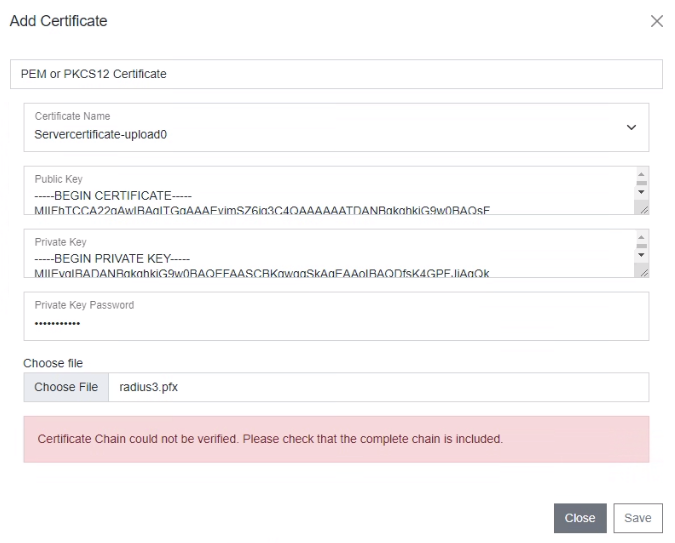
### Certificate chain could not be verified
When you want to use your own server certificate, your RADIUS server requires the complete certificate chain in order to let other participants (Proxy, RadSec clients, endpoints that try to connect) verify the server's identity. \
If you see this message, either copy & paste the CA certificate below the server certificate in the textfield or create a PCKS8 certificate bundle which includes all certificates from the lead to the root.
## Admin Portal issues
### Login
In order to log in to the RADIUSaaS web portal ("RADIUSaas Admin Portal"), the following requirements have to be met:
* The UPN/email address you provided as technical admin has to be authenticatable against **some** Microsoft Entra ID (Azure AD) (it does not have to be an identity from the tenant whose users will leverage RADIUSaaS for network authentication).
* The UPN/email address you provided as technical admin must have been registered on your RADIUSaaS instance as described [here](/admin-portal/access-and-rules/permissions.md). In case it is the initial admin, please [contact us](https://www.radius-as-a-service.com/help/) if you believe we registered the wrong user.
* The Microsoft Entra ID (Azure AD) user object behind the UPN/email address has to be entitled to grant the RADIUSaaS Enterprise Application the following permissions (see screenshot below):
* **Read** the Basic User Profile
* **Maintain** access to data you have given it access to (allow request of refresh token)\

* In case your Microsoft Entra ID (Azure AD) user has no rights to grant the required permissions, no corresponding **Enterprise Application** will be auto-created in your Microsoft Entra ID (Azure AD). To circumvent this, ask your IT department to grant your user the needed permissions.
## Intune configuration issues
### Profile assignment
Wi-Fi configuration does not get deployed if Wi-Fi, SCEP and Trusted certificate profiles are assigned to different groups. They might show up as "Pending" or there is no status at all. Please use the **same group or "All devices" resp. "All users"** for **all linked profiles**.
You can assign the SCEP Root certificate profile to both "All users" and "All devices" if you have a device (assigned to "All devices)" and user certificate (assigned to "All users") in use.
### SCEP certificate
#### Android
Android seems to require an UPN in Subject alternative name in newer versions (even for device certificates). Please add this in your SCEP profile (e.g. {{DeviceId}}@contoso.com):
### Wi-Fi profile
#### Android
Common error codes: 0xc7d24fc5 or -942518331
Key points are:
* select the **Root CA certificate** for **server validation** (important: do not upload the server certificate of the RADIUSaaS)\
**- and -**
* define a **radius server name**
* Note: There seems to be a character limit for this field. To solve possible issues, you might just use the domain part without subdomain like "radius-as-a-service.com" (instead of "contoso.radius-as-a-service.com").
* [Android developers](https://developer.android.com/guide/topics/connectivity/wifi-enterprise) states: "\[...] must configure **both a Root CA certificate**, and either a **domain suffix match** or an alternate subject match". So, the MDM can use "setAltSubjectMatch" or "setDomainSuffixMatch" after adding a root certificate to the Wi-Fi configuration. Intune seems to use "setDomainSuffixMatch" as just "radius-as-a-service.com" is sufficient.
* sometimes **identity privacy** is needed (e.g. seen on Android kiosk devices / Android Enterprise dedicated)
---
# Agent Instructions
This documentation is published with GitBook. GitBook is the documentation platform designed so that both humans and AI agents can read, navigate, and reason over technical content effectively. Learn more at gitbook.com.
## Querying This Documentation
If you need additional information that is not directly available in this page, you can query the documentation by asking a question.
Perform an HTTP GET request on the following URL with the `ask` and `goal` query parameters:
```
GET https://docs.radiusaas.com/other/troubleshooting.md?ask=&goal=
```
`ask` is the immediate question: it should be specific, self-contained, and written in natural language.
`goal` is what the user is ultimately trying to achieve, the reason they need the answer. Sharing it helps GitBook give you a better, more relevant answer. A goal is most helpful when it describes the outcome the user wants rather than restating the question. For example, with `ask=how do I create an API token`, a goal like `automate deployments from our CI pipeline` lets GitBook tailor the answer to that use case.
The response will contain a direct answer to the question and relevant excerpts and sources from the documentation.
Use this mechanism when the answer is not explicitly present in the current page, you need clarification or additional context, or you want to retrieve related documentation sections.