> For the complete documentation index, see [llms.txt](https://docs.radiusaas.com/llms.txt). Markdown versions of documentation pages are available by appending `.md` to page URLs; this page is available as [Markdown](https://docs.radiusaas.com/configuration/scepman-saas.md).
# 🆕 SCEPman SaaS
space.vars.SCEPmanSAAS\_ProductName is a fully managed, hosted and maintained SCEPman deployment. It is included with the RADIUSaaS & space.vars.SCEPmanSAAS\_ProductName Bundle, which provides both services under one subscription. Use it to issue certificates for certificate-based authentication with RADIUSaaS, without managing a SCEPman instance. This guide covers the initial configuration for an **Intune** deployment.
## Setup space.vars.SCEPmanSAAS\_ProductName
{% hint style="info" %}
If you are already using an existing SCEPman Enterprise deployment in your tenant with RADIUSaaS, make sure to have a look at our migration guide: [Migrate from SCEPman Enterprise](/configuration/scepman-saas/migrate-from-scepman-enterprise.md)
{% endhint %}
{% stepper %}
{% step %}
### Enroll the space.vars.SCEPmanSAAS\_ProductName CA
With an enabled space.vars.SCEPmanSAAS\_ProductName license, you will see that the menu section in **SCEPman** > **Settings** contains options to enroll and configure your SCEPman CA.
At the top you have the ability to choose the **Common Name** as well as the **Organization** name for your CA.
{% hint style="info" %}
The Common Name and Organization will form the subject of the CA certificate during the enrollment.
{% endhint %}
By clicking **Enroll root CA**, the setup will start and the status is shown above. Once finished, the SCEPman section will contain additional pages.
{% tabs %}
{% tab title="Status" %}
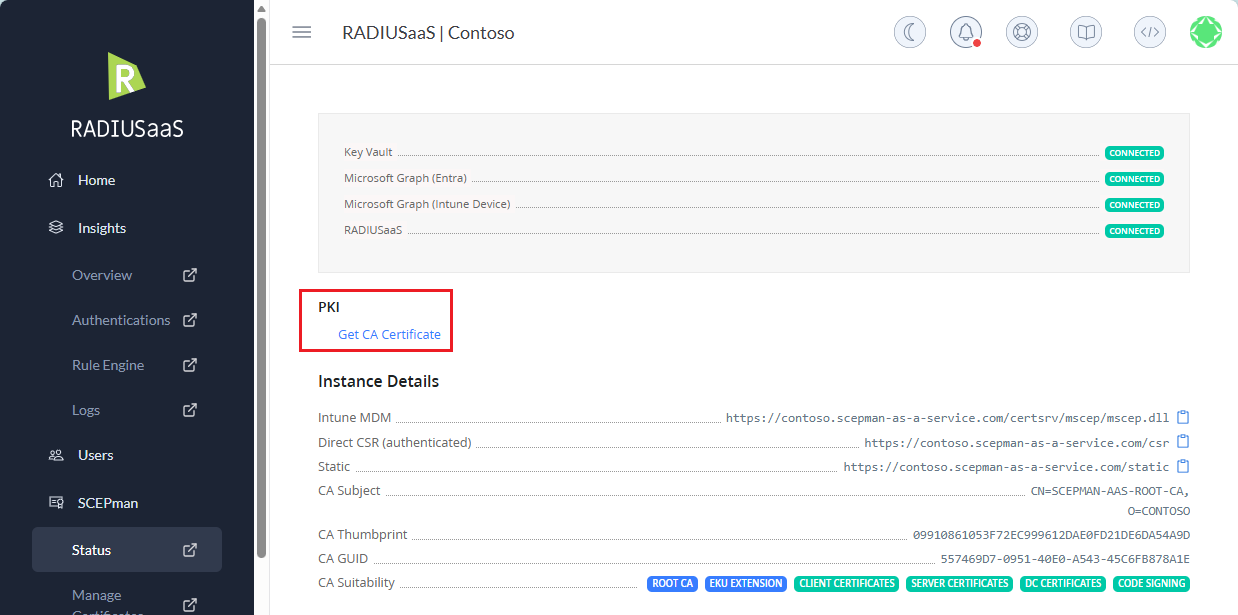
The **Status** page shows the current state of the CA and its integrations as well as the endpoint URLs you need to request certificates.
{% endtab %}
{% tab title="Manage Certificates" %}
Under **Manage Certificates** you can browse through issued certificates, check their validity, and also have the option to revoke them.
{% endtab %}
{% tab title="Request Certificates" %}
Under **Request Certificates**, you can request different types of certificates for manual enrollment and installation or sign CSRs.
{% hint style="info" %}
Have a look at the dedicated [Certificate Master](https://docs.scepman.com/certificate-management/certificate-master) documentation for more information on the different types of certificates you can request here.
{% endhint %}
{% endtab %}
{% tab title="Tasks" %}
The **Tasks** section shows the current status of the Certificate Master and links to sections permitted by your role.
{% endtab %}
{% endtabs %}
{% hint style="success" %}
SCEPman is now deployed and ready to issue certificates!
{% endhint %}
{% endstep %}
{% step %}
### Configure the default Certificate Profile
The default settings applied to certificates issued through all certificate endpoints. Each source under Certificate endpoints can override these two values with its own profile.
Revocation for every certificate this CA issues is configured here as well.
Default Certificate Profile Settings
**Default Extended Key Usage**
What the certificate may be used for. Server certificates need `ServerAuthentication`; device certificates for 802.1X need `ClientAuthentication`. This is only the fallback in case the request does not contain an EKU.
**Validity Period**
The maximum number of days that an issued certificate is valid. [Learn more](https://docs.scepman.com/scepman-configuration/application-settings/certificates#appconfig-validityperioddays).
**Certificate Revocation List (CRL)**
Publishes a signed list of revoked certificates for clients that don't support OCSP. The distribution point is embedded in every certificate issued from the moment you enable it. [Learn more](https://docs.scepman.com/certificate-management/manage-certificates/enabling-crl).
**OCSP Authorised Responder**
Answers revocation live over OCSP, signed by a dedicated responder certificate. Always enabled for SCEPman SaaS. [Learn more](https://docs.scepman.com/certificate-management/manage-certificates).
{% endstep %}
{% step %}
### Enable Certificate Endpoints
Enable the certificate endpoints relevant to your tenant. Switching the endpoints on will reveal additional settings to configure. For more information on each endpoint, see [here](/admin-portal/scepman-saas/settings.md#certificate-endpoints).
{% hint style="warning" %}
Microsoft Intune and Static challenge + Entra device check endpoints require Step 4 to be done first.
{% endhint %}
{% endstep %}
{% step %}
### Connect SCEPman to your Azure Tenant
{% hint style="info" %}
You will only need to connect SCEPman to your Azure tenant if you plan to deploy certificate through Intune or the Static-AAD endpoint.
{% endhint %}
In most scenarios you will want SCEPman to be able to issue certificates by using Intune SCEP profiles and also revoke certificates automatically if a device has been wiped for example.
For this to work as intended, SCEPman requires specific roles in your tenant. This can either happen by consenting to our multi-tenant enterprise application or by providing an app registration holding the required permissions yourself.
#### Confirm Tenant
{% hint style="info" %}
We recommend the Admin Consent / multi-tenant enterprise application approach to connect to your Azure tenant, since it does not require a client secret that must be monitored for expiration.
{% endhint %}
The first step of the **Admin Consent** flow is to enter your tenant ID and confirming it.
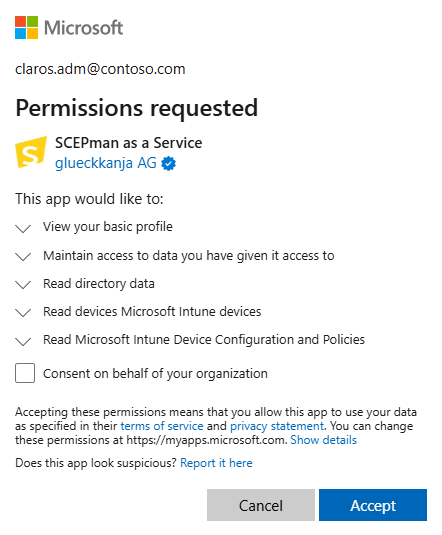
Upon clicking **Confirm Tenant** you will be redirected to Microsoft's consent page for authentication and to approve this application initially:
Accepting this consent will add the space.vars.SCEPmanSAAS\_ProductName enterprise application to your tenant but does not yet add the required permissions.
#### Consent Admin
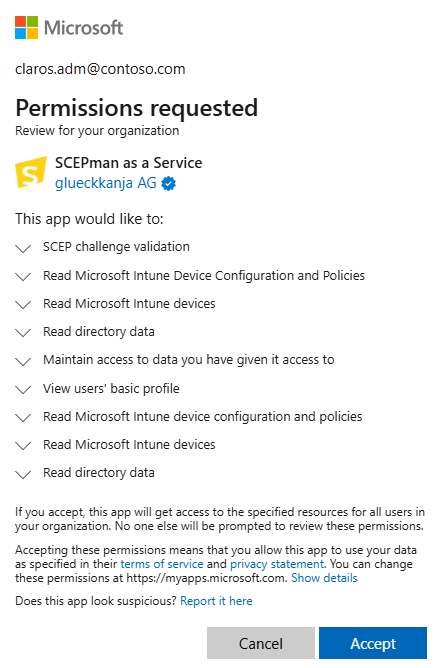
After you confirm the tenant, select **Consent Admin**. Microsoft's consent page opens again. Confirm that the application can receive the listed permissions. Learn more in the Security & Privacy Q\&As.
{% hint style="success" %}
SCEPman is now able to connect to your Azure tenant and retrieve information for certificate binding!
{% endhint %}
{% endstep %}
{% step %}
### Enable the Intune Endpoint
In most scenarios, certificates will be deployed by leveraging Intune SCEP certificate profiles to trigger devices to request certificates from SCEPman. To enable this endpoint, navigate to **SCEPman** > **Settings** and enable the **Intune Validation** setting and save the configuration:
#### Compliance Check
As with SCEPman Enterprise, SCEPman can evaluate the validity of a certificate by checking the compliance state of a bound device. Please refer to the [SCEPman documentation](https://docs.scepman.com/scepman-configuration/application-settings/scep-endpoints/intune-validation#appconfig-intunevalidation-compliancecheck) for more information.
#### Device Directory
Selecting the device directory depends on the specific binding you choose in the SCEP profile:
* `{{DeviceId}}` will be looked up in **Intune**
* `{{AAD_DeviceID}}` will be looked up in **AAD** (Entra ID)
* `{{UserPrincipalName}}` (UPN) will be looked up in **AAD** (Entra ID)
Please refer to the [SCEPman documentation](https://docs.scepman.com/scepman-configuration/application-settings/scep-endpoints/intune-validation#appconfig-intunevalidation-devicedirectory) for more details on the device directories.
{% hint style="success" %}
The Intune validation is now enabled and its certificate endpoint is available!
{% endhint %}
{% endstep %}
{% step %}
### Deploy Certificates
With the Intune validation enabled, you will find that the SCEPman status page now shows an endpoint URL for the Intune MDM:
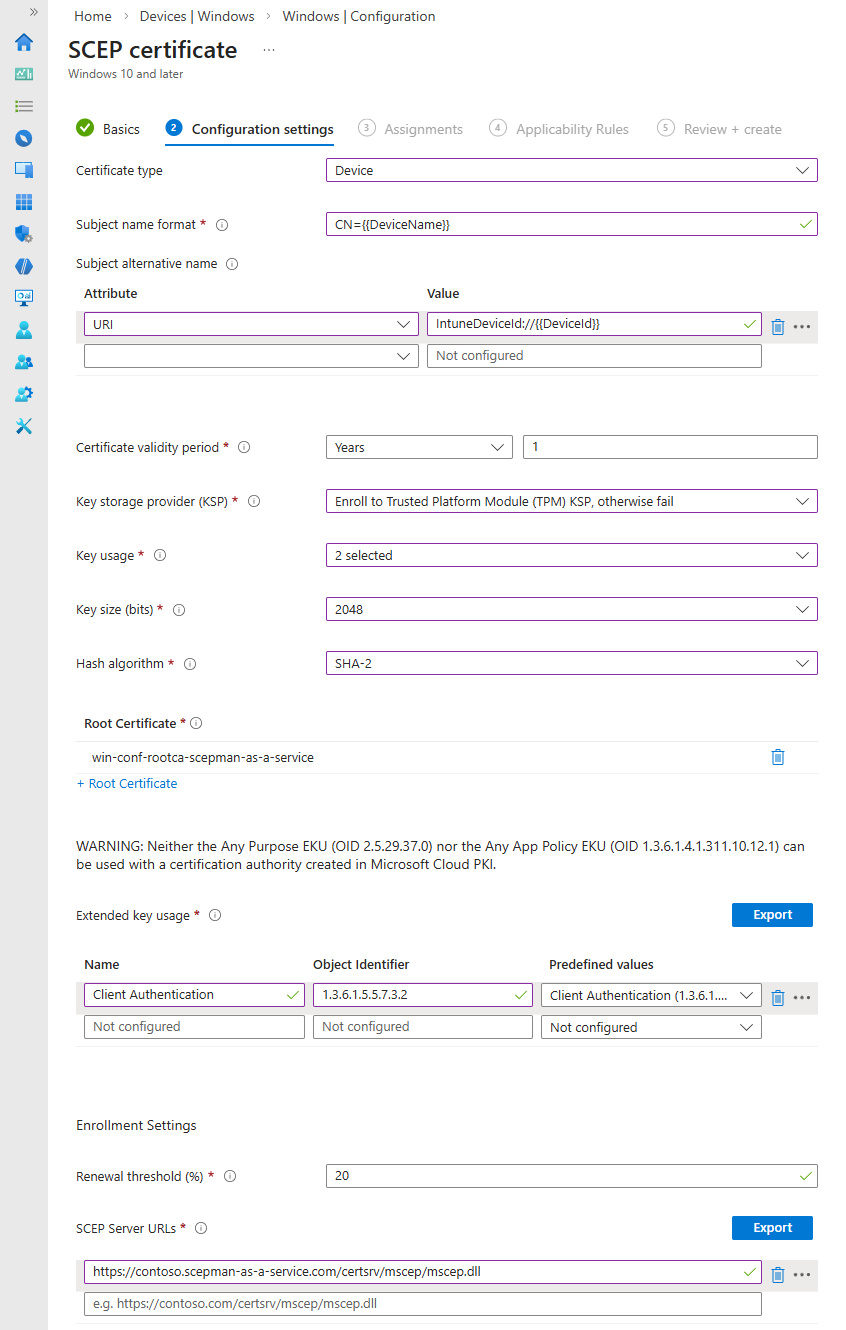
This URL will be used in the Intune SCEP certificate profile for the **SCEP Server URL**.
#### Root Certificate
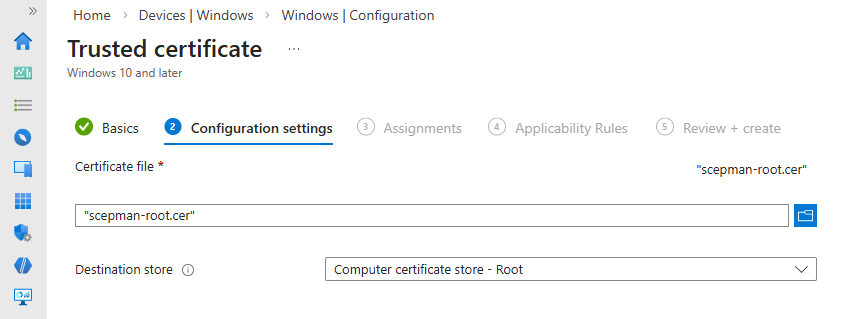
Make sure to create a **Trusted Certificate** profile in Intune before continuing to the **SCEP certificate** profile and deploy the CA certificate of space.vars.SCEPmanSAAS\_ProductName to your clients.
[SCEPman documentation: Root Certificate](https://docs.scepman.com/certificate-management/microsoft-intune/windows-10#root-certificate)
#### SCEP Certificate
The process of creating the SCEP certificate profile is identical to SCEPman Enterprise.
[SCEPman documentation: SCEP - Intune - Windows](https://docs.scepman.com/certificate-management/microsoft-intune/windows-10)
{% hint style="success" %}
Your clients should now receive certificates issued by SCEPman!
{% endhint %}
{% endstep %}
{% endstepper %}
## Establish Trust
To allow devices to authenticate using certificates from your space.vars.SCEPmanSAAS\_ProductName CA and enabling your access points to establish RadSec connections to your RADIUSaaS instance, you will need to trust its CA certificate. To do this, first download your CA certificate from the **SCEPman** > **Status** page.
Having the CA certificate in place, navigate to **Settings** > **Trusted Certificates** and add a new certificate.
Upload your downloaded certificate file and save:
{% hint style="success" %}
RADIUSaaS will now accept accept incoming connections that use certificates issued by SCEPman!
{% endhint %}
## Enable Management of the RADIUSaaS Server Certificate
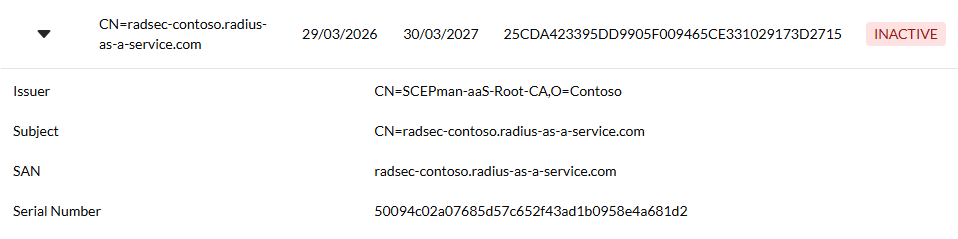
After you have enrolled space.vars.SCEPmanSAAS\_ProductName, you will notice that the SCEPman Connection section under **Connectivity** > **SCEPman** allows you to pregenerate a certificate and setup a connection.
A connection to your SCEPman instance has already been established at this point and RADIUSaaS can request server certificates. The correct way of going further now depends on if you already use RADIUSaaS to authenticate clients at this point or if this is a fresh setup.
#### Pregenerate Certificate
RADIUSaaS will request a server certificate and add it to the list of certificates but **will not activate it or enable the automatic management.**
In case you currently have clients authenticating to RADIUSaaS, this allows you to verify that your Wifi profile has the correct names for server validation as well as the correct root certificate for server validation.
#### Setup Connection
If this is a fresh setup or after you have verified that your clients use the correct information for validating the server certificate, you can enable the automatic management of the server certificate by clicking **Setup Connection**.
{% hint style="success" %}
RADIUSaaS will now request a server certificate from SCEPman, activate it, and renew it in time before it expires!
{% endhint %}
## Other Certificate Endpoints
Setting up other certificate endpoints is similar to the way they are set up with SCEPman Enterprise. Make sure to take a look at the relevant documentation:
#### Jamf
{% embed url="" %}
#### REST Enrollment API
{% hint style="info" %}
The SCEPman SaaS variant of the REST Enrollment API uses RADIUSaaS access tokens instead of Entra access tokens.
{% endhint %}
{% embed url="" %}
#### Active Directory Validation
{% embed url="" %}
#### Static Validation
{% embed url="" %}
#### Static-AAD Validation
{% embed url="" %}
#### DC
{% embed url="" %}
## Logs
You can find all application logs that you would expect in SCEPman Enterprise in the **Logs** section. These include:
* Service Health Messages
* Issued Certificates
* OCSP Responses
* Warnings and Errors during Validation and Issuance
---
# Agent Instructions
This documentation is published with GitBook. GitBook is the documentation platform designed so that both humans and AI agents can read, navigate, and reason over technical content effectively. Learn more at gitbook.com.
## Querying This Documentation
If you need additional information that is not directly available in this page, you can query the documentation by asking a question.
Perform an HTTP GET request on the following URL with the `ask` and `goal` query parameters:
```
GET https://docs.radiusaas.com/configuration/scepman-saas.md?ask=&goal=
```
`ask` is the immediate question: it should be specific, self-contained, and written in natural language.
`goal` is what the user is ultimately trying to achieve, the reason they need the answer. Sharing it helps GitBook give you a better, more relevant answer. A goal is most helpful when it describes the outcome the user wants rather than restating the question. For example, with `ask=how do I create an API token`, a goal like `automate deployments from our CI pipeline` lets GitBook tailor the answer to that use case.
The response will contain a direct answer to the question and relevant excerpts and sources from the documentation.
Use this mechanism when the answer is not explicitly present in the current page, you need clarification or additional context, or you want to retrieve related documentation sections.